Microsoft SQL Server 2012 Master Data Services (Part 1)
Purpose: The purpose of this document is to provide a walkthrough of how to do initial configuration of Microsoft SQL Server 2012 Master Data Services for Microsoft Dynamics Master Data Management scenario.
Challenge: The pain that organizations are experiencing around data accuracy, consistent reporting, regulatory compliance, etc. generated a lot of interest in Master Data Management. Master Data Management becomes extremely important when you have multiple different systems and you have to manage the data in different systems, each system may potentially have its own version of the same data which means not only to duplication of the data but also to data inconsistencies and data conflicts. Master Data Management is a solution in this case with ultimate goal to have a single version of the truth in data terms. The main functions of Master Data Management are content management, relationship management, access control, change management and data processing.
Solution: In order to resolve Master Data Management challenges Microsoft offers an excellent solution which is based on Microsoft SQL Server platform. SQL Server Master Data Services provides a central data hub that ensures the integrity of information and consistency of data is constant across different applications. In this document I’ll explain how to build a solid Master Data Management solution leveraging Microsoft SQL Server, SQL Server Master Data Services and SQL Server Integration Services.
Scenario
Microsoft Dynamics AX 2012 and Microsoft Dynamics CRM 2011 have some built-in Master Data Management capabilities, however in this document I’ll focus on a more generic scenario when we have not only Microsoft Dynamics products in play but also some other systems. For the sake of simplicity in this document I’ll consider usual Master Data Management entities such as Customers and Products.
Walkthrough
In this walkthrough I’m using Microsoft Dynamics AX 2012 R2 Demo VM (AX2012R2A) which has Microsoft SQL Server 2012 installed
Once all appropriate infrastructural components are installed which in my case includes Microsoft SQL Server 2012 and Microsoft SQL Server 2012 Master Data Services we’ll have to do initial configuration of Master Data Services
Master Data Services Configuration Manager – AX2012R2A

Master Data Services Configuration Manager – Database Configuration

The first step would be to create MDS database in Microsoft SQL Server 2012
Master Data Services Configuration Manager – Database Configuration (Create Database - Welcome)

Master Data Services Configuration Manager – Database Configuration (Create Database – Database Server)

Master Data Services Configuration Manager – Database Configuration (Create Database - Database)

Master Data Services Configuration Manager – Database Configuration (Create Database – Administrator Account)

Master Data Services Configuration Manager – Database Configuration (Create Database - Summary)

Master Data Services Configuration Manager – Database Configuration (Create Database – Progress and Finish)

Master Data Services Configuration Manager – Database Configuration (Done)

Now once we have created MDS database we’ll have to do Web Configuration
Master Data Services Configuration Manager – Web Configuration

Master Data Services Configuration Manager – Web Configuration (Create Website)

HTTP Binding Information Warning

Master Data Services Configuration Manager – Web Configuration (Connect to Database)


Master Data Services Configuration Manager – Web Configuration (Configuration Complete)

Now once we have completed Web Configuration step we can access Master Data Service Web front-end
Getting Started with Microsoft SQL Server 2012 Master Data Services
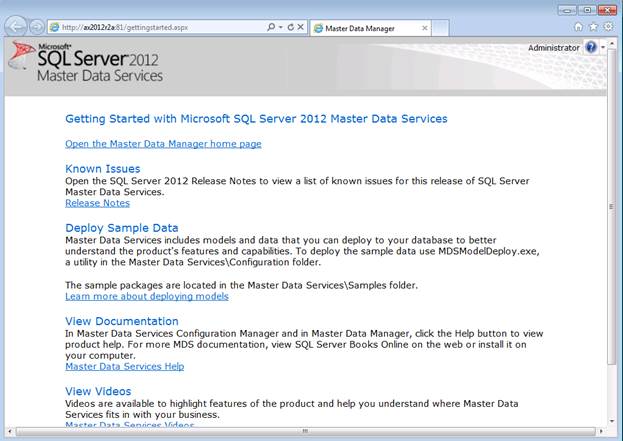
As you can see on Master Data Services Welcome page there’s a lot of information with links to documentation, etc. Now we’ll go ahead and open Master Data Manager Home page
Microsoft SQL Server 2012 Master Data Services – Home

From Master Data Manager Home page you can perform different tasks
Information Worker Tasks

Master Data Services provide Web front-end which allows you to do all activities in Web Browser. However please note that you can also install a very useful Master Data Services Excel Add-in and perform the same tasks from Excel
Install Master Data Services Add-in for Microsoft Excel

Administrative Tasks

The next step in exploration of Master Data Services will be to load some sample data and get a feel of what it looks like to work with Master Data Services UI (User Interface). Master Data Services ship with sample data model which you can deploy and this is exactly what we’re going to do now
Model Deployment Wizard

Deploy Package

You can find number of sample models in Master Data Services installation folder
Choose File to Upload

In this particular case I’ll deploy Customer model
Deploy Package

Deploy Package – Error

As you can see in case Deployment package contains some data we’ll have to use Command Line Utility to deploy the package
Command Line Utility

Once deployment process is finished we can see Customer model in the list of models in Master Data Services. As you can see I went ahead and deployed Product model as well
Models

Now you can explore entities and entity attributes included into deployed models. But my next step would be to create my own model for Microsoft Dynamics Master Data Management scenario, that’s why I’ll go to Model Maintenance area
Model Maintenance

Add Model (+ sign)

I’ll name my model “Dynamics” because it will be used in Master Data management scenario for Microsoft Dynamics AX 2012 and Microsoft Dynamics CRM Online
Entity Maintenance

Model

As the result you will see “Dynamics” model in the list of models. Now I can define entities for my newly created model. I’m going to add “DynamicsCustomer” and “DynamicsProduct” entities
Add Entity – Customer

Add Entity – Product

Model Entities

Now you will see my newly created entities associated with “Dynamics” model. The next step would be to define required attributes for Customer and Product entities
Attribute Group Maintenance – Customer

Attribute Group Maintenance – Product

Model View

For the sake of simplicity I’ll add only “Name” attribute to my Customer and Product entities. Please also note that the system automatically created “Code” attribute which uniquely identified a record within Master Data Services (this is the requirement for Master Data Services)
Edit Entity – Customer

Entity – Customer

Edit Entity – Product

Entity – Product

As you remember during configuration of Master Data Services we created MDS database. So now after we created required entities for our “Dynamics” model we can verify that appropriate tables were created on the SQL side
Microsoft SQL Server database

In Master Data Services you can expose master data to other systems by means of Subscription Views. That’s why I’ll go ahead and create appropriate Subscription Views for my Customer and Product entities
Subscription View – Customer

Subscription View - Product

Subscription Views

Again the work we did in Master Data Manager will find its reflection on the SQL side in the form of views
Microsoft SQL Server database

Obviously Master Data Services provides robust capabilities to manage different aspects of Master Data Management such as content management, relationship management, access control, change management and data processing. And I did describe only required minimum setup to be able to proceed with Master Data Management scenario for Microsoft Dynamics. Please see some of the screenshots below which speak to version management, security control, etc. in Master Data services
Manage Versions

Manage Users

Remark: In this walkthrough I’ll be focusing on only data management aspects. However please note that Master Data Services is natively integrated with Microsoft SQL Server 2012 Data Quality Services to handle data quality aspects which may open up whole another discussion.
Summary: This document describes required minimum setup for implementing Master Data Management scenario for Microsoft Dynamics AX 2012 and Microsoft Dynamics CRM using Microsoft SQL Server 2012 Master Data Services. In particular I explained the process of Master Data Services configuration and then went into details of how to create a model, model entities and entity attributes to support Master Data Management scenario for Customers and Products. Microsoft SQL Server 2012 provides a robust platform for Master Data Management which not only includes Master Data Services, but also Data Quality Services, SQL Server Integration Services, etc. Master Data Services provides Web front-end as well as Excel Add-in which allows you to choose your favorite tool to perform Master Data Management activities.
Tags: SQL Server 2012, Dynamics AX 2012, Dynamics CRM Online, Master Data Management, Master Data Services, Data Quality Services, SQL Server Integration services, Customers, Products.
Note: This document is intended for information purposes only, presented as it is with no warranties from the author. This document may be updated with more content to better outline the issues and describe the solutions.
Author: Alex Anikiev, PhD, MCP